Mobile Sales Guide
Mobile POS for Small Business: A Practical Guide to Selling by Phone
Learn how a mobile POS works, what to test before using one, and how to connect products, payments, stock, receipts, cash, and sales history on Android.
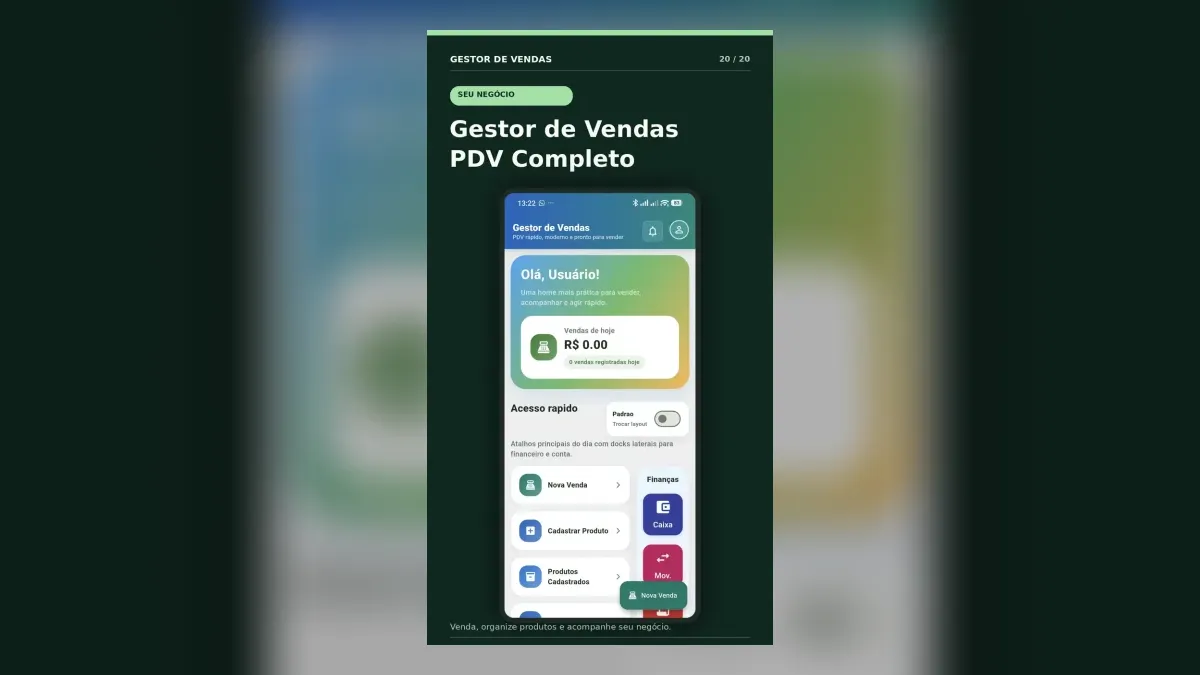
A mobile POS can turn an Android phone or tablet into a practical sales counter. That sounds simple, but the useful part is not the screen where someone taps Complete sale. The useful part is what happens around that tap: the correct product is selected, the payment method is recorded, stock changes, the transaction appears in history, and the day can still be reconciled later.
This guide explains the full routine for a small shop, market stall, service provider, snack bar, or home business. It also shows the Gestor de Vendas PDV Completo app as a documented example.
Product relationship: Gestor de Vendas PDV Completo and Software Scout have the same owner. The app appears here as a clearly identified example, not as an independent recommendation. Test the current version with sample data and compare it with your own operational, privacy, fiscal, and support requirements.
What a mobile POS should connect
A mobile point of sale should create one reliable chain:
Product → quantity → price → payment → receipt → stock movement → sales history → closing report
If staff must copy the same sale into a notebook, spreadsheet, and messaging app, the phone has become an extra screen rather than a useful system. Start by checking whether one ordinary transaction leaves enough information for the next task.

1. Prepare a small catalog before the first sale
Do not begin by importing every item the business has ever sold. Create a pilot catalog with 15 representative products: popular items, similar names, one product without a barcode, one out-of-stock item, and any item sold by weight or another special unit.
Use names that a cashier can recognize quickly. Add the current selling price, opening quantity, unit, category, and barcode when it is genuinely used. A clear catalog prevents the team from creating “Coffee,” “coffee,” and “Coffee new” as three unrelated products.
2. Rehearse product search on the actual device
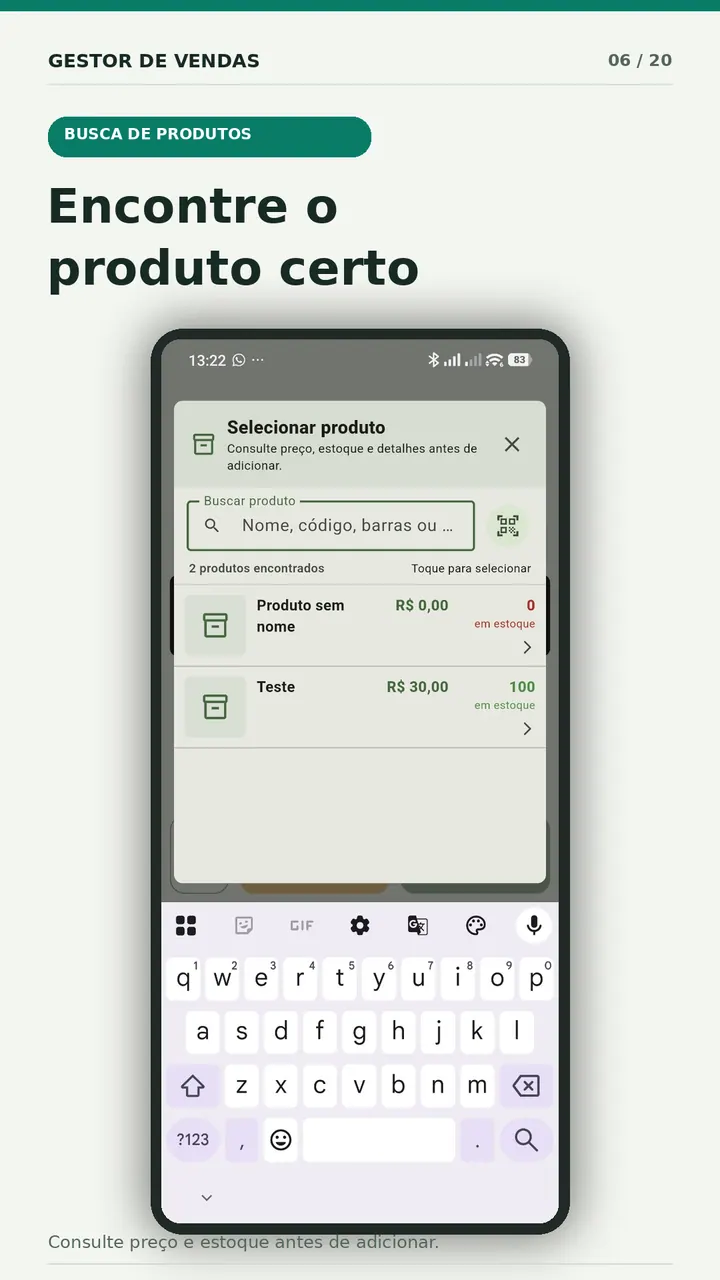
A search field can look excellent in a screenshot and still slow down a queue. Test it with the phone, lighting, connection, and product names used at the counter. Search by name, internal code, and barcode. Confirm what happens when no match exists and who may create a product during a sale.
3. Review the cart before taking payment
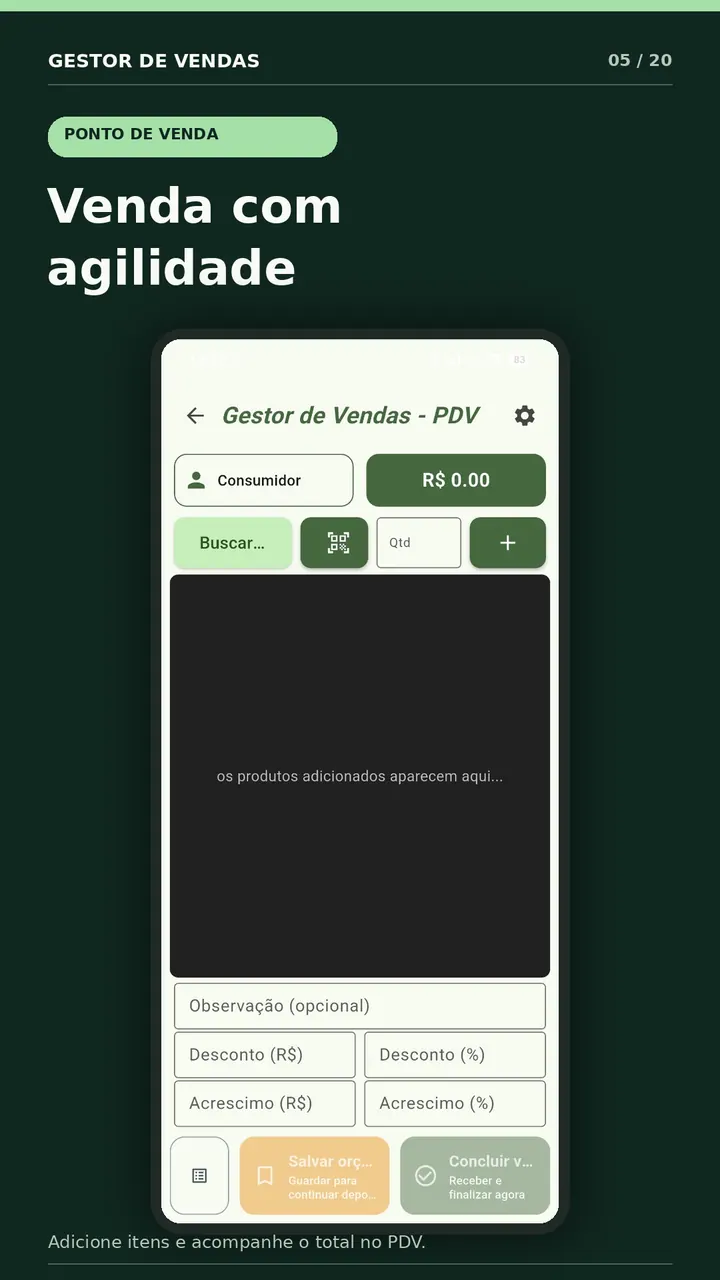
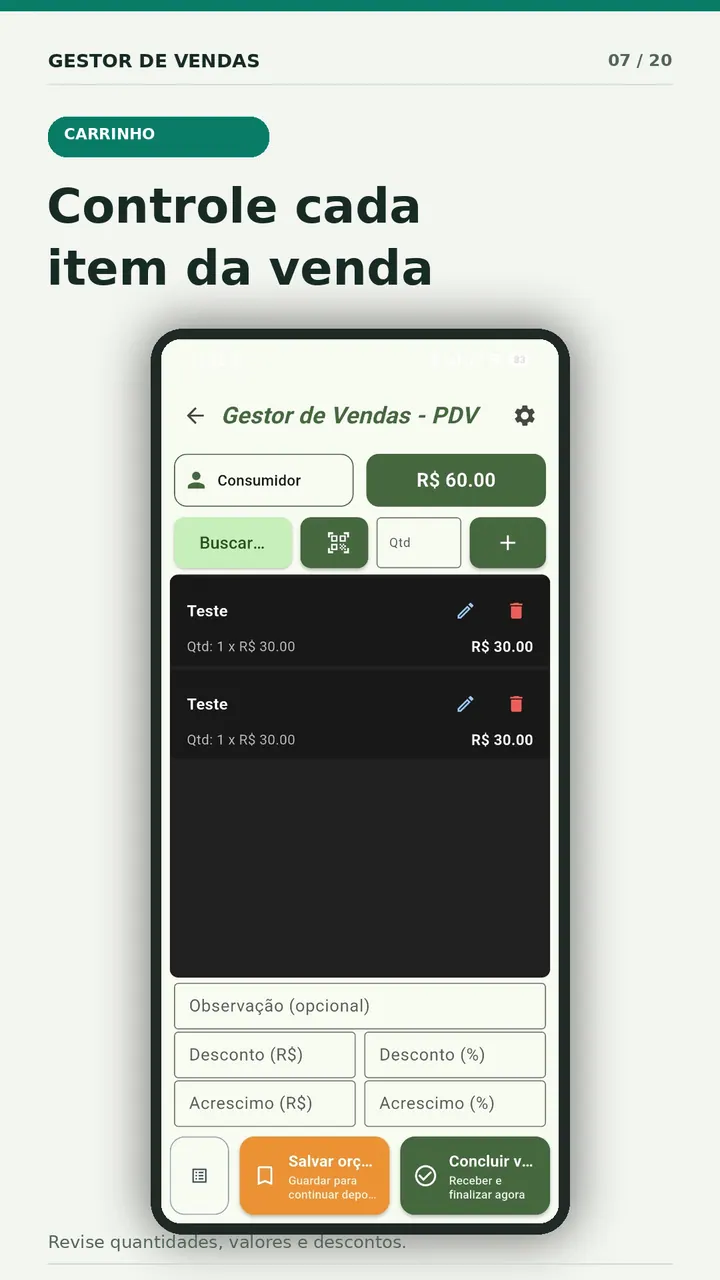
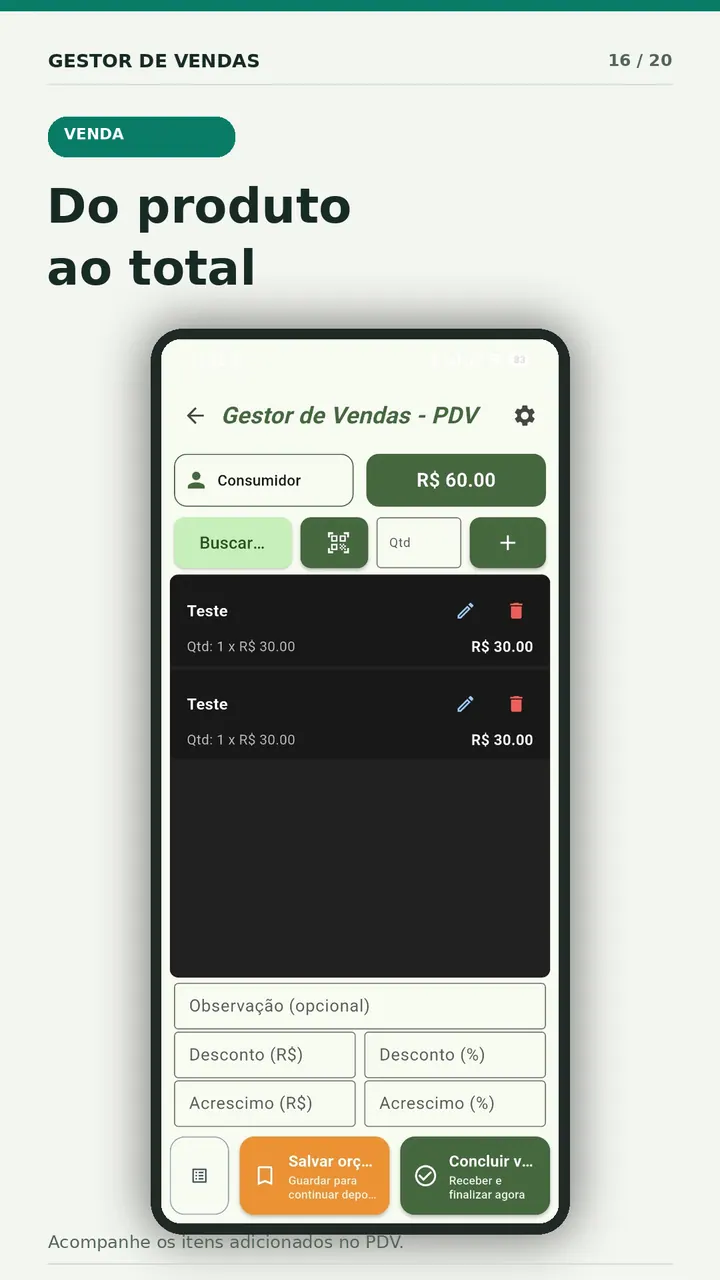
The cart is the last calm moment before money changes hands. Staff should be able to see item names, quantities, unit prices, discounts, surcharges, and the total. Test how an item is edited or removed and whether the history records a correction properly.
4. Record the payment method accurately
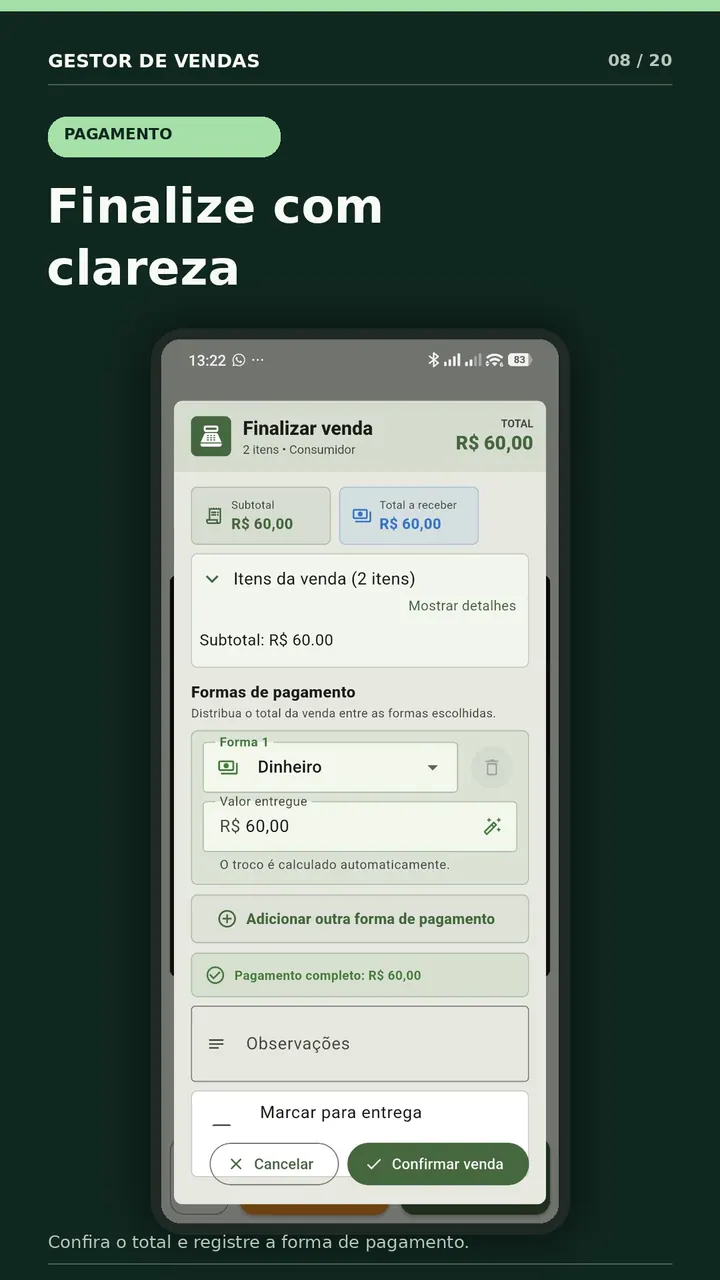
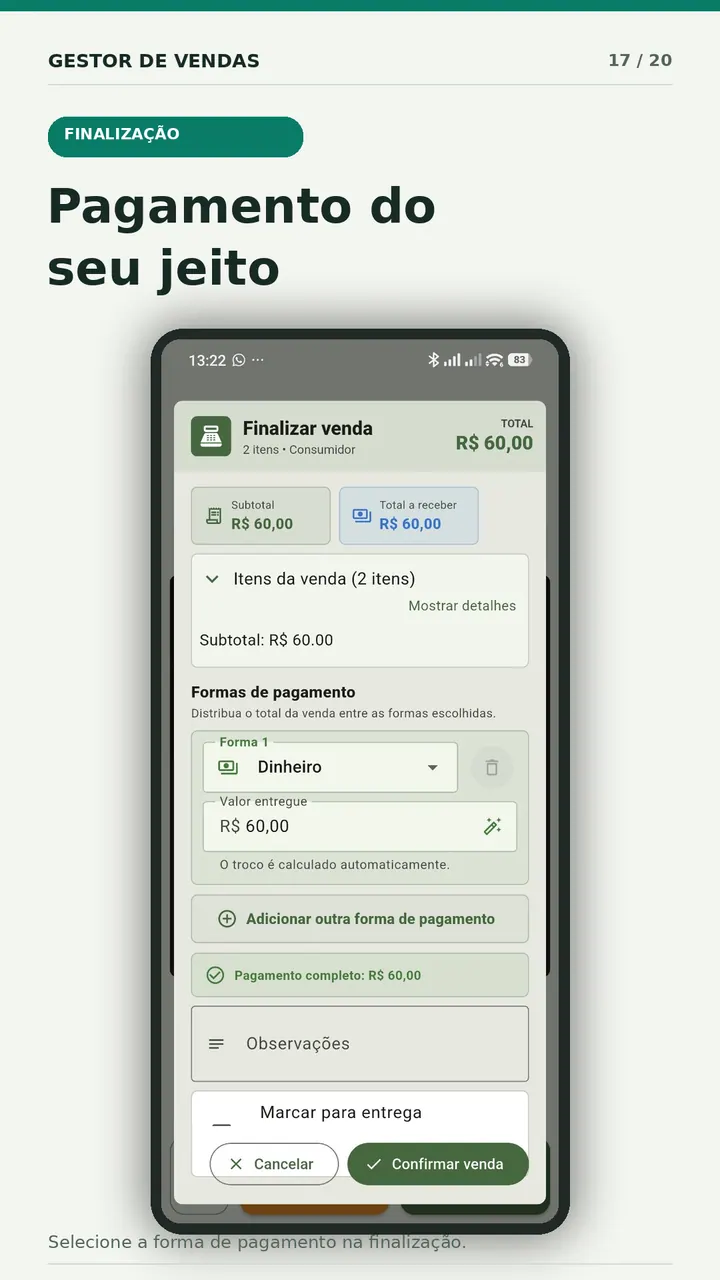
Cash, Pix, debit card, credit card, split payment, and credit sale do not mean the same thing at closing time. Create only the methods the business accepts and teach the team when to use each one. A card sale recorded as cash makes both reports look wrong even when the customer paid correctly.
For cash, verify how change is calculated. For split payments, check that the combined amount equals the sale total. For a sale paid later, confirm that the transaction creates a receivable rather than pretending cash entered the drawer.
5. Check what the sale changed
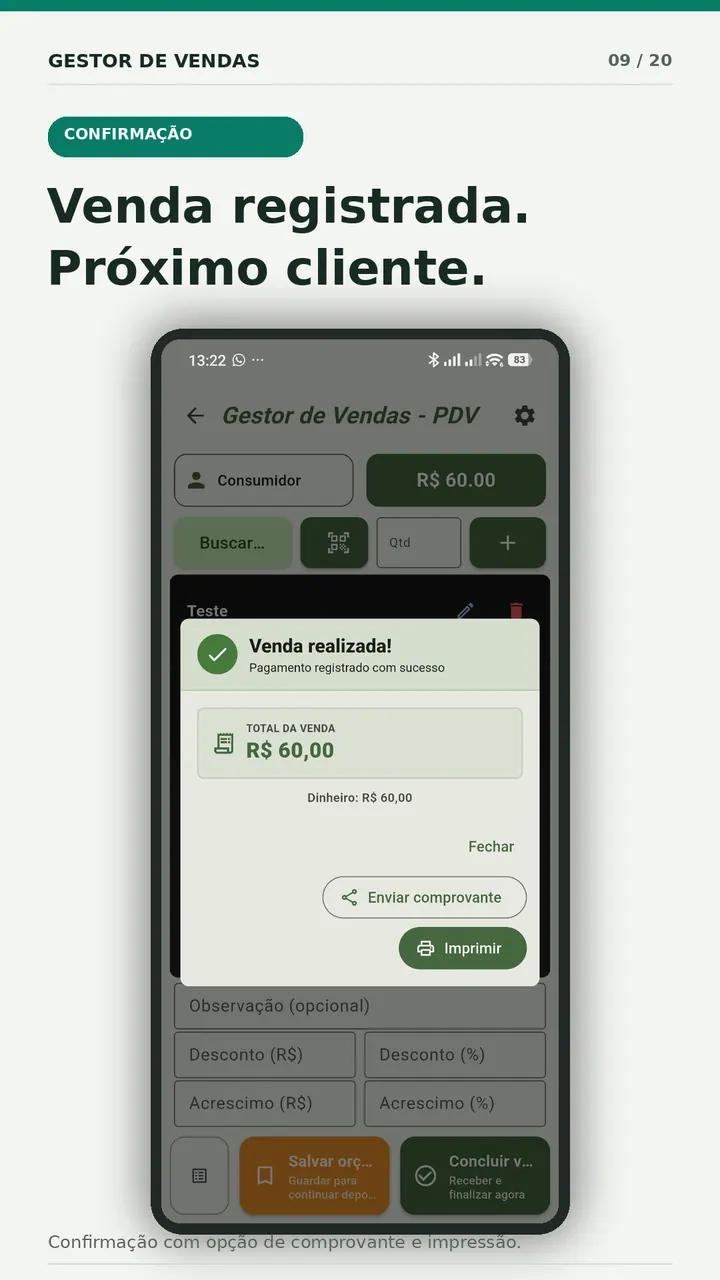
After a test transaction, inspect four places:
- Sales history contains the correct customer, amount, date, seller, and payment method.
- Product stock decreased by the quantity sold.
- Cash or the corresponding financial account received the expected movement.
- A credit sale appears in accounts receivable with a due date and responsible customer.
This short inspection finds configuration errors before they become a week of unreliable reports.
What to verify before adopting a phone POS
| Test | Practical question |
|---|---|
| Device | Does the app remain readable and responsive on the phone used at the counter? |
| Access | Can roles limit price changes, cancellations, customer data, and closing tasks? |
| Recovery | Is there a documented backup and restore route? |
| Printing | Does the receipt work with the real printer and connection? |
| Data | Where are business and customer records stored, and how are they deleted or exported? |
| Fiscal process | What separate fiscal document or integration is required in your location? |
| Support | Who helps when a sale, device, or subscription behaves unexpectedly? |
A receipt is not automatically a fiscal document
A technical sales receipt can help the customer and the internal record, but it does not automatically satisfy Brazilian tax obligations. NFC-e and its auxiliary document follow specific authorization and technical rules. The official NFC-e portal and your accountant or state tax authority should guide the fiscal process that applies to the business.
Do not describe a POS as “fiscal” merely because it prints a sale summary. Confirm the exact integration, state, business regime, contingency process, and supported document before relying on it.
Where Gestor de Vendas PDV Completo fits
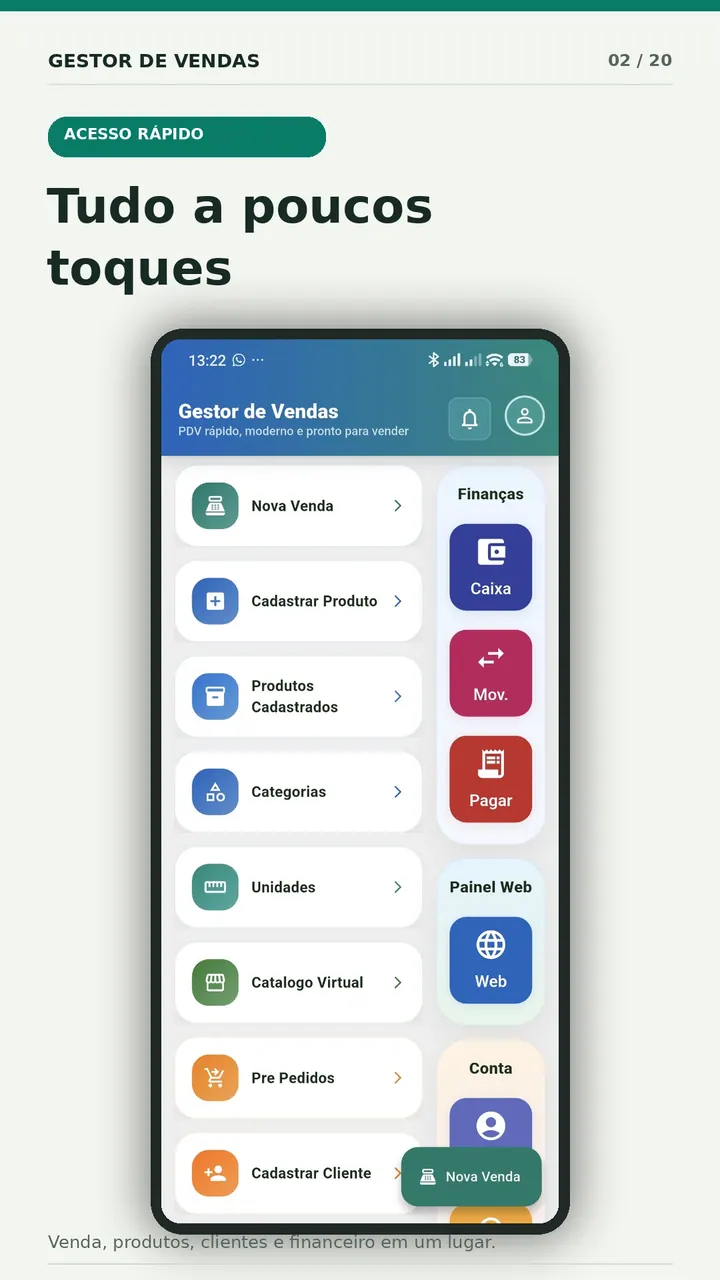
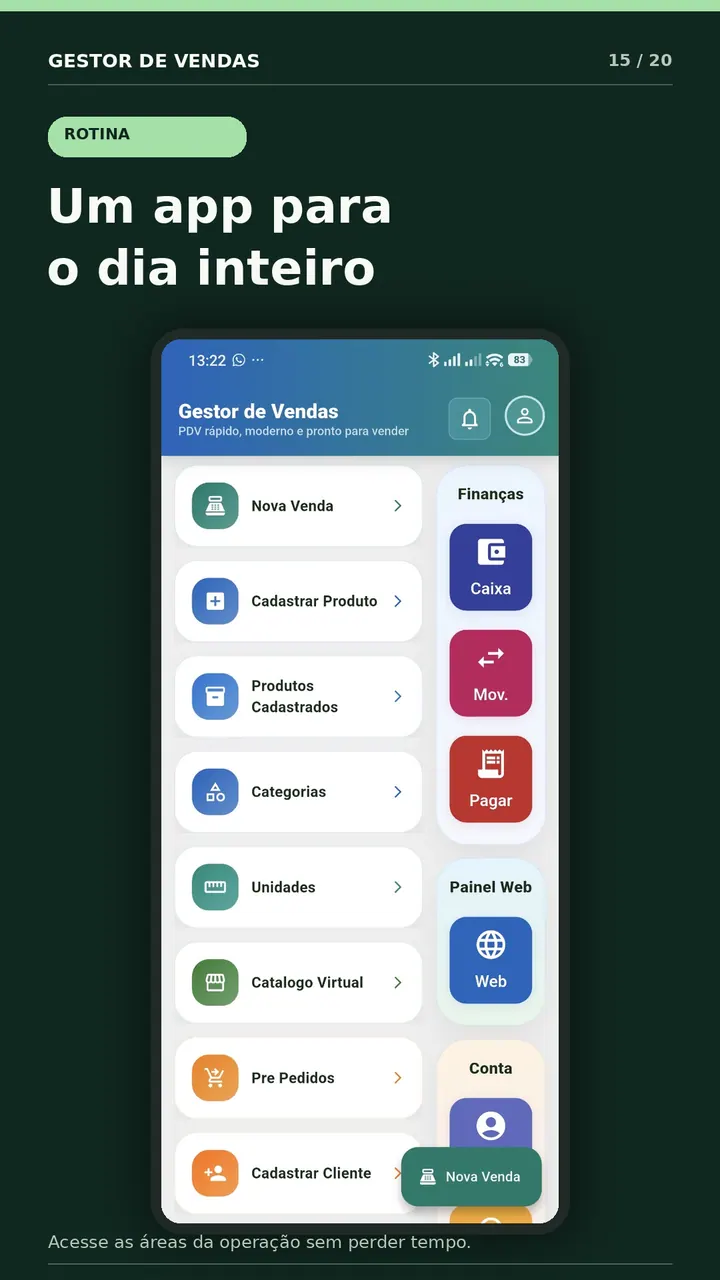
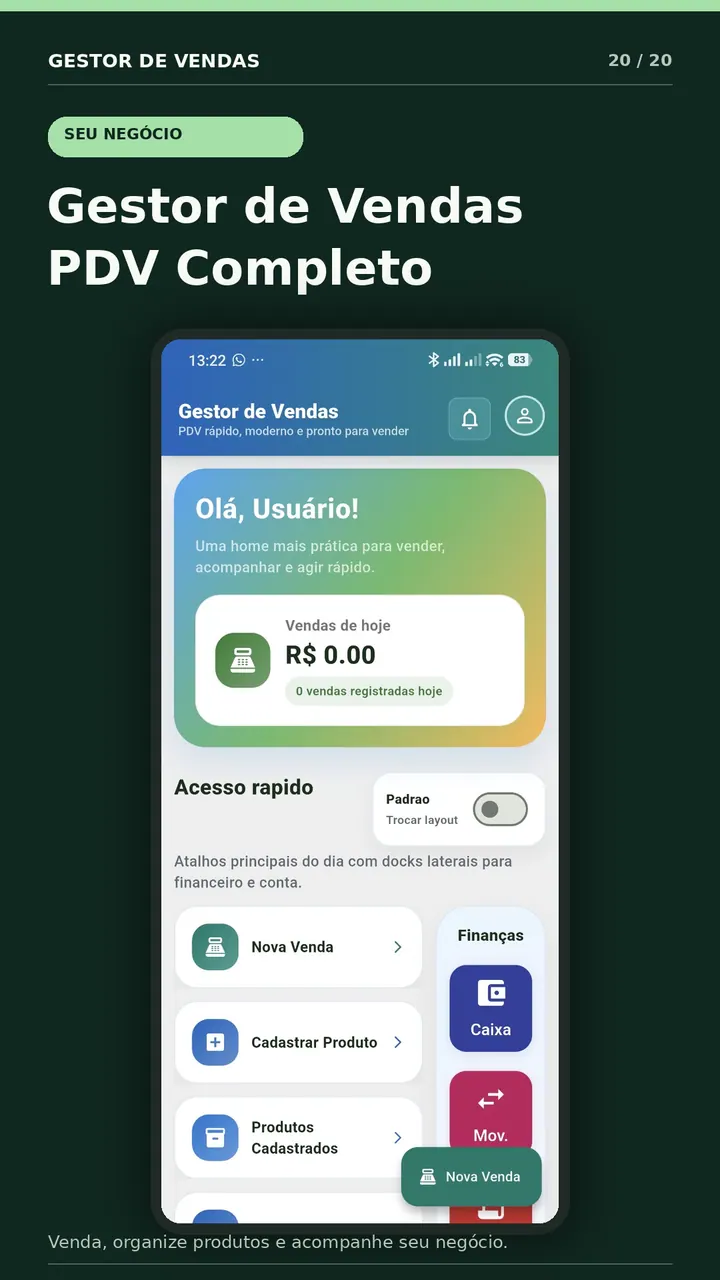
The Android app brings product registration, sales, multiple payment methods, customers, cash movements, accounts receivable, history, reports, receipts, and backup-related controls into the same menu. That scope can suit an owner who wants to run a pilot without installing a traditional counter computer.
The Google Play listing currently shows ads and in-app purchases. Check the current plan, limits, renewal terms, data practices, device requirements, and support before entering live business records.
Want to test the documented workflow?Install the current version, create sample products, and complete a fictional sale before using real customer or financial data.Download Gestor de Vendas on Google Play
A seven-day pilot that reveals real problems
- Day 1: configure payment methods and 15 sample products.
- Day 2: rehearse cash, card, Pix, discount, and cancellation scenarios.
- Day 3: test customer registration only where it has a defined purpose.
- Day 4: print or share a sample receipt and check the fiscal process separately.
- Day 5: close the register and compare every payment method.
- Day 6: create a backup with fictional data and locate the recovery instructions.
- Day 7: list every doubt, workaround, missing permission, and training need.
The pilot is successful when another trained person can make a sale, find it later, explain the payment, verify the stock movement, and close the day without asking the person who configured the app to reconstruct everything.
Frequently asked questions
Can a phone replace a traditional POS terminal?
For a simple operation, it may handle product search, sales, payments, customer records, and reports. Hardware, offline operation, certified fiscal integrations, multiple locations, permissions, and service-level requirements can justify a more specialized setup.
Should every customer be registered?
No. Define a purpose such as delivery, credit, warranty, or a requested receipt. Collect only the information needed for that purpose and establish access, correction, retention, and deletion rules.
What is the first report to check?
Start with daily sales by payment method and compare it with cash counted and external payment records. A simple report checked every day is more useful than a complex dashboard nobody reconciles.